 CardScanner
Convert Business Cards to CSV
Scan your cards, check the details, and export a CSV file that opens in Excel or any spreadsheet app.
The Free plan includes 100 scans each month. No credit card needed to start.
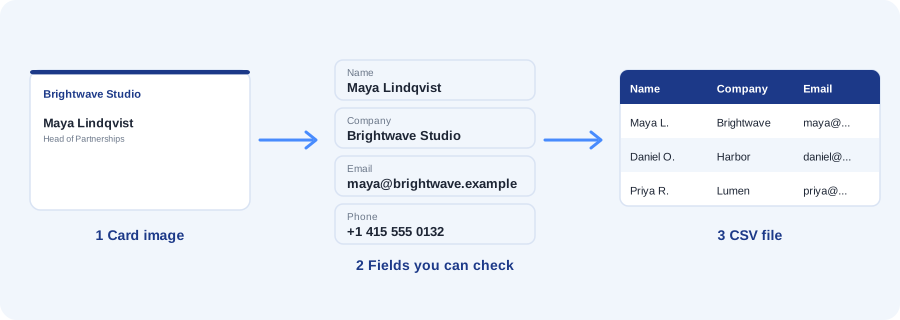
A business card has the details you need, but they are printed on paper. To use them in a spreadsheet, someone has to type them in.
CardScanner reads the printed details from a photo, lets you correct them, and writes them into a CSV file with one row for each contact.
From card image to CSV
The steps are simple. You stay in control of each one.
- Upload a photo of a card, or take one with your camera.
- CardScanner reads the text and fills in the fields, such as name, company and email.
- You check the fields and fix anything that is wrong, then save the contact.
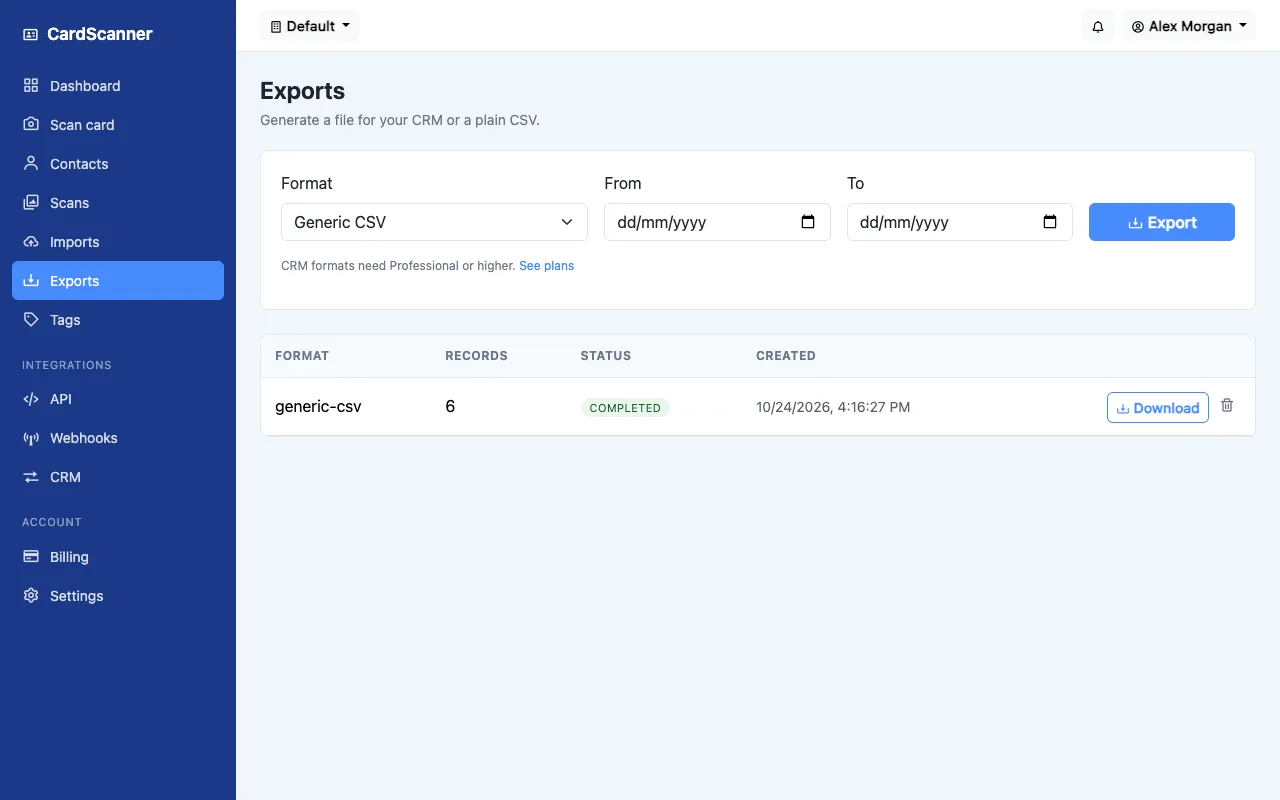
- Open the Exports page, choose Generic CSV, and press Export.
- When the export is complete, download the file.
The export is not automatic. You choose when to export and which dates to include.
What the CSV looks like
Each saved contact becomes one row. This is an illustrative example with made up people.
| Name | Company | Job title | Phone | Website | |
|---|---|---|---|---|---|
| Maya Lindqvist | Brightwave Studio | Head of Partnerships | maya.lindqvist@brightwave.example.com | +1 415 555 0132 | brightwave.example.com |
| Daniel Osei | Harbor Logistics | Operations Manager | daniel.osei@harborlogistics.example.com | +1 206 555 0178 | harborlogistics.example.com |
| Priya Raman | Lumen Analytics | Founder | priya@lumenanalytics.example.com | +1 512 555 0114 | lumenanalytics.example.com |
The real file has more columns. It includes first name, last name, job title, company, email, phone, mobile, website, street, city, state, country, postal code, LinkedIn, Twitter, tags and notes. Fields that are not on a card are left empty.
The export screen
Choose a format, pick a date range if you want one, and press Export. Past exports stay in the list so you can download them again.
Open the CSV in Excel
CardScanner exports CSV files. It does not create .xlsx files, but Excel opens CSV without any trouble.
- Download the file from the Exports page.
- In Excel, choose File, then Open, and select the CSV file. You can also double click the file.
- If the columns look squashed, use the Data tab and choose From Text or CSV.
- Google Sheets, Numbers and other spreadsheet apps open CSV files in a similar way.
When information is missing
Not every card shows every detail. If a card has no website or no mobile number, that cell in the CSV is empty.
If a detail was missed, add it on the review screen before you export. It is quicker to fix it there than in the spreadsheet.
Frequently asked questions
Which columns are in the CSV?
First name, last name, job title, company, email, phone, mobile, website, street, city, state, country, postal code, LinkedIn, Twitter, tags and notes.
Does it work with Excel?
Yes. Excel opens CSV files. CardScanner does not export .xlsx files.
What happens if a detail is not on the card?
The cell is left empty. You can also add the detail on the review screen before you export.
Can I export only some contacts?
Yes. You can choose a date range on the Exports page.
Can I send contacts to a CRM?
Yes. CRM formats such as Salesforce, HubSpot and Zoho are included on every plan, including Free, along with generic CSV and vCard.
Related pages and guides
Ready to stop typing business cards
Create a free account and scan your first card.
Start Scanning for Free