 CardScanner
How to Manage a Large Collection of Business Cards
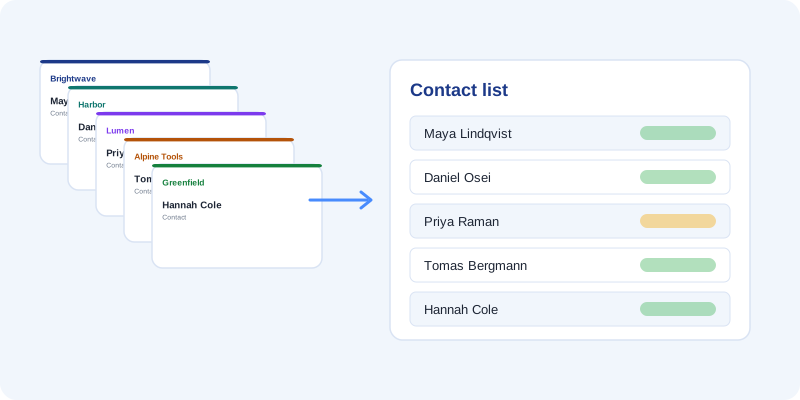
Many people have a drawer, a box or a bag full of business cards that have been collected over the years. The cards might hold useful contacts, but nobody can search a drawer.
This guide shows a calm way to turn that pile into a clean list. It uses the bulk business card scanner to read the cards and the business card to CSV export to get a spreadsheet.
Step 1. Sort the pile
Do not scan everything. Make three piles.
- Keep. People you might contact again.
- Maybe. Cards you are unsure about. Scan these last.
- Recycle. Companies that no longer exist, duplicates and people you do not remember.
A smaller pile means less work and a cleaner list.
Step 2. Set up a simple photo routine
Pick a table with plain surface and good light. Work in batches of 20 to 50 cards so you do not get tired. Put the card flat, take one photo, and move on. Keep the same distance each time so the photos look alike.
Step 3. Upload in batches
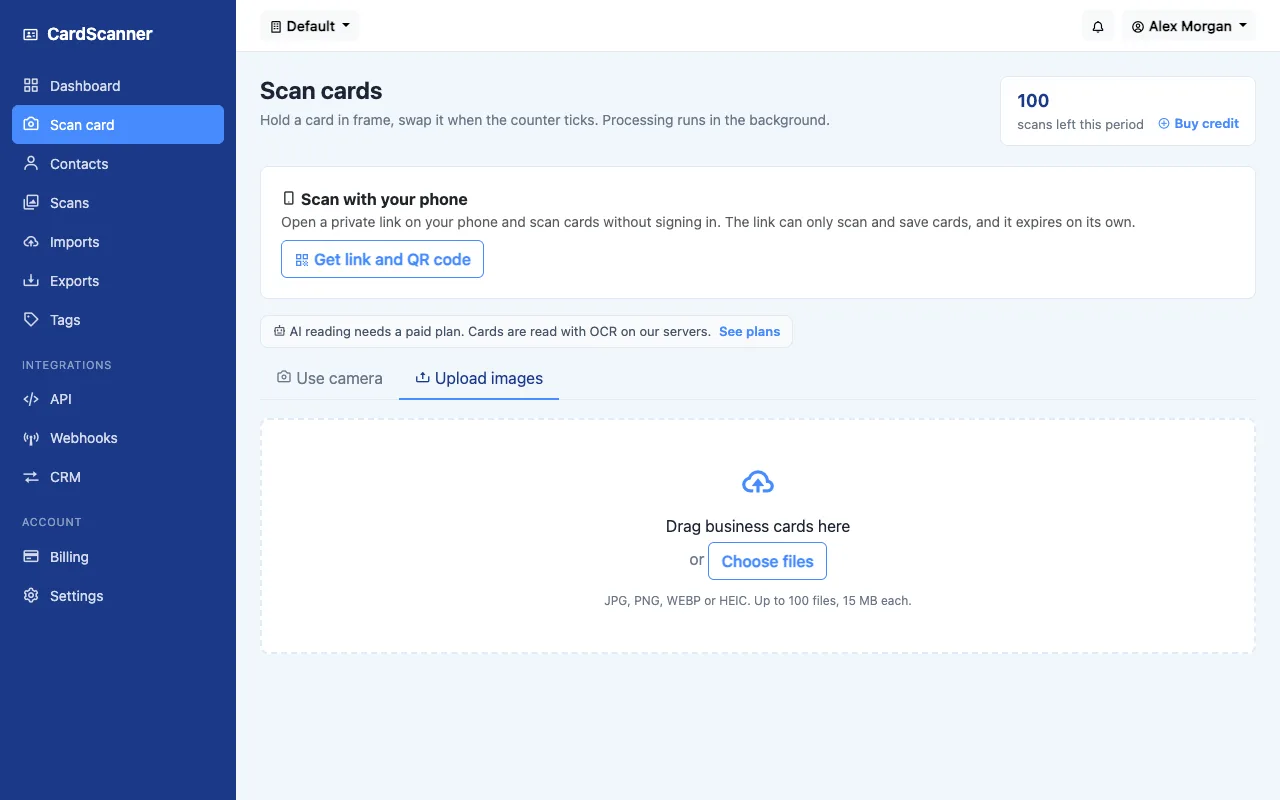
CardScanner lets you add up to 100 photos in one upload. JPG, PNG, WEBP and HEIC files are supported, up to 15 MB each. Your plan also sets a monthly scan limit. The Free plan includes 100 scans each month, and paid plans include more, so check the pricing page before a very large job.
Step 4. Work through the review list
The Scans list shows each card and its status. Work through it from the top.
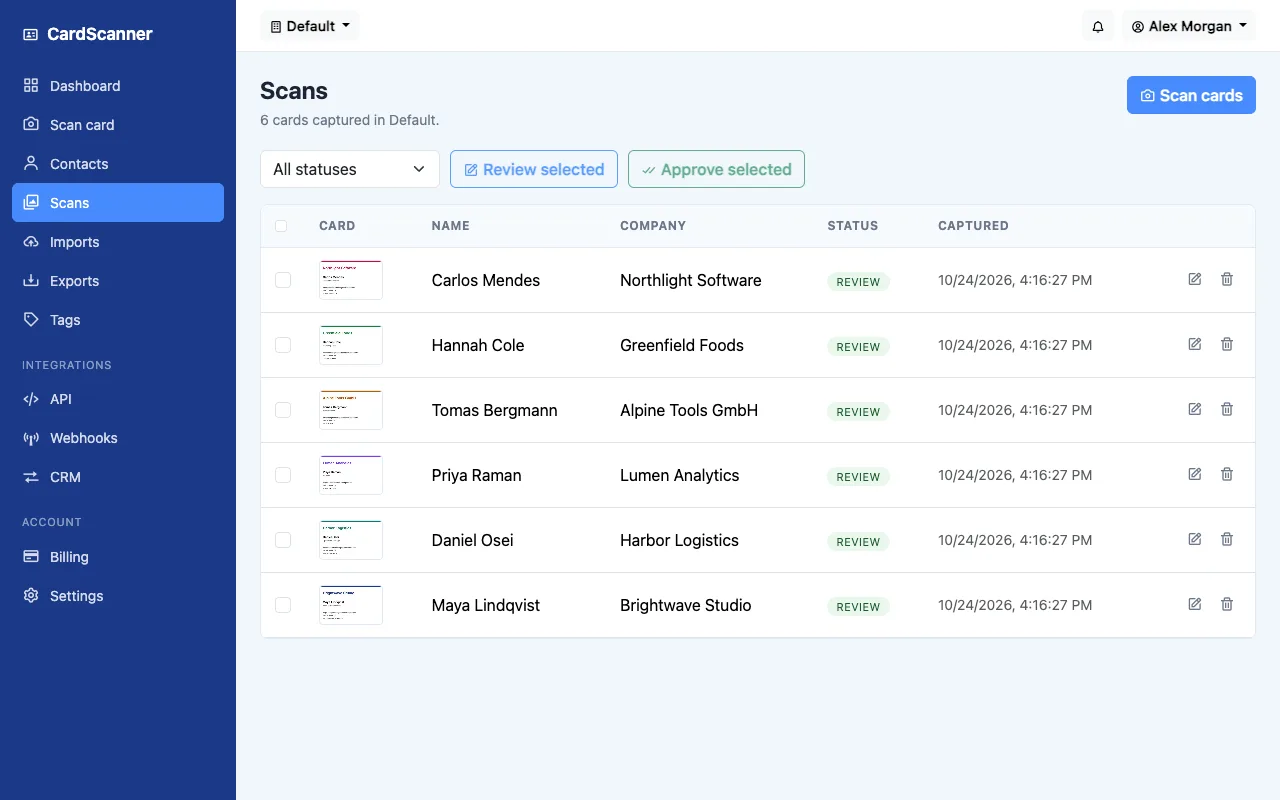
- Open a card marked review.
- Check the email address, the name and the phone number.
- Fix any mistakes and save.
When a group of cards looks right at a glance, select them and press Approve selected. It saves time on a big batch.
Step 5. Deal with duplicates
Old collections often hold the same person several times. CardScanner compares new cards with your saved contacts using details such as email, phone and LinkedIn. On the Professional plan and above it also compares name and company. When a possible duplicate appears you can use the existing contact, create a new one or merge the details.
Step 6. Add tags and notes
Group your contacts so the list is useful. Good tags are short and clear, for example the event, the year or the type of relationship. Add a note if you remember something useful about the person.
Step 7. Export to a spreadsheet
- Open Exports.
- Choose Generic CSV.
- Press Export.
- Download the file and open it in Excel or another spreadsheet app.
The CSV has columns for first name, last name, job title, company, email, phone, mobile, website, address, LinkedIn, Twitter, tags and notes.
A worked example
Say you have 120 cards in a box. You sort them and keep 80. You photograph them in two sessions of 40. You upload each session as one batch, review them over two evenings, tag them with the year, and export one CSV. You now have a single list that you can sort and filter.
Keep it clean from now on
- Scan new cards within a day or two of receiving them.
- Use the same tags each time.
- Export a fresh CSV once in a while as a backup.
Start with a small batch of ten cards to see how it works, then take on the rest.
Try CardScanner for free
Scan your first card and see the details appear. No credit card needed to start.
Start Scanning for Free