 CardScanner
How to Scan Business Cards and Get CSV Data in Bulk
You come back from a trade show with a rubber band around a thick stack of business cards. Each card holds a contact you want to keep. Typing them into a spreadsheet one by one is slow, and it is easy to make mistakes.
This guide shows a simpler way. You will photograph the cards, scan them in bulk, check the details and export a CSV file. If you want the short version, see the bulk business card scanner page.
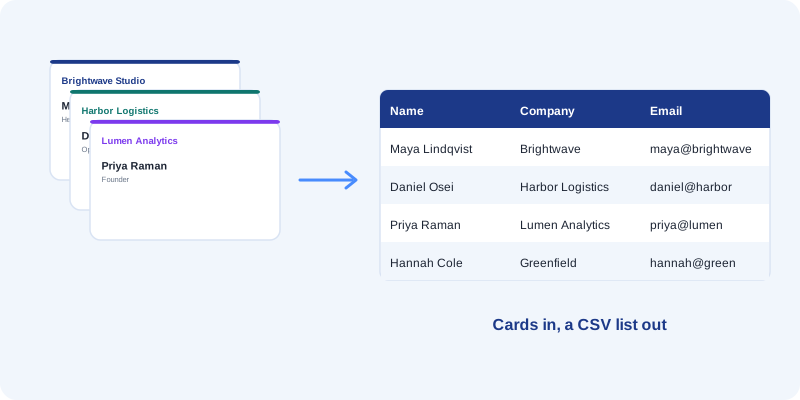
Why manual entry takes so much time
Typing a card sounds quick, but it adds up. You read the name, type it, read the email, type it, and repeat for the phone number, the company and the job title. Then you check for typing mistakes.
With a large stack, the job is boring too. Boring work is where mistakes slip in. One wrong letter in an email address can mean a message that never arrives.
What can be taken from a business card
Most cards show the same few things. CardScanner looks for these when it reads a card photo.
- Name and job title
- Company
- Email addresses
- Phone numbers, including mobile and fax when they are labelled
- Website and address
- LinkedIn and other social links, if they are printed
Text that does not fit a field is kept in the notes. You can read more about this on the business card OCR page.
Prepare your card images
Good photos make the rest of the job easier. A few small habits help a lot.
- Put the cards on a plain, flat surface in good light.
- Avoid glare and shadows across the text.
- Take one card per photo and fill the frame.
- Hold the camera steady so the text is sharp.
CardScanner accepts JPG, PNG, WEBP and HEIC images, up to 15 MB each.
Scan the cards with CardScanner
- Create a free account. No credit card is needed to start.
- Open Scan cards and choose Upload images.
- Add up to 100 photos at once.
- Keep working while the cards are read in the background.
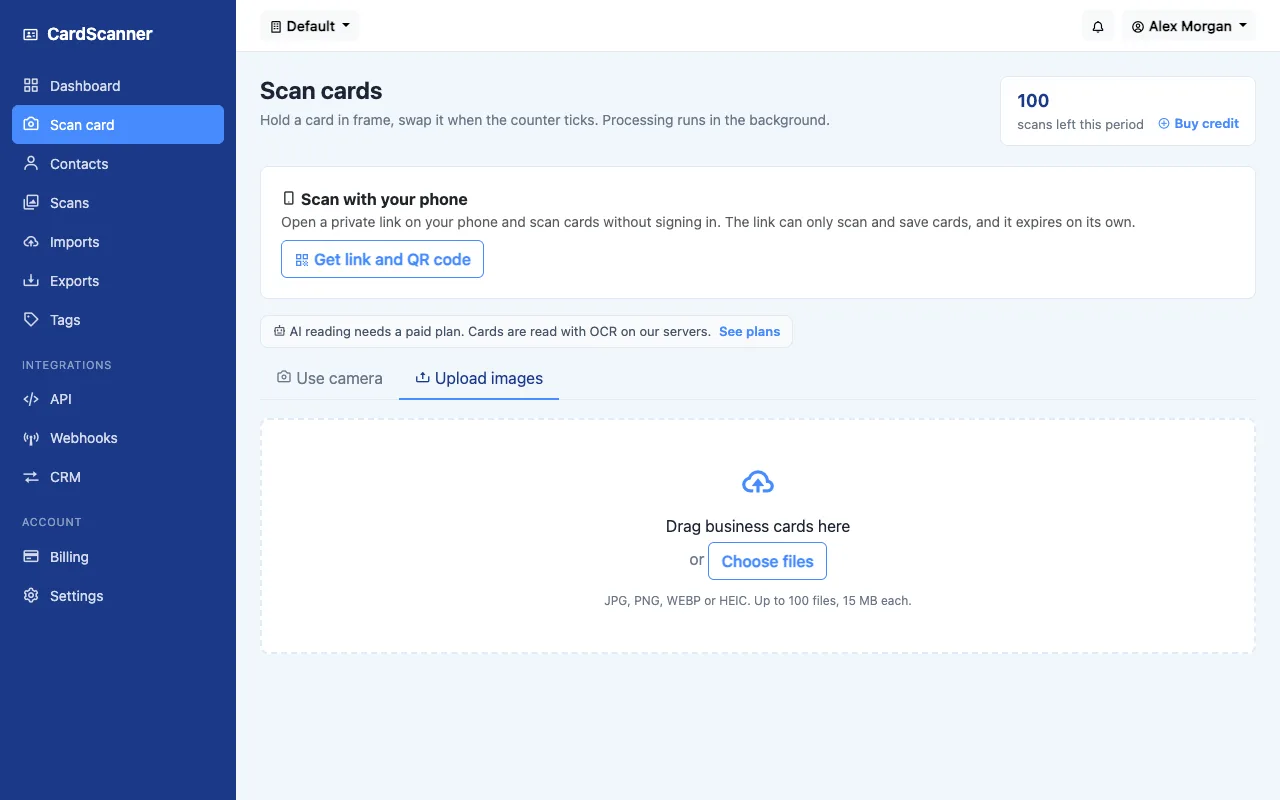
Review the names, companies, emails and phone numbers
Open the Scans list. Every card shows a status. When it says review, open it. You will see the card photo and the details that were read from it.
Check the email address first, because it is the detail you will use most. Then check the name, the company and the phone number. Fix anything that looks wrong and press Save contact.
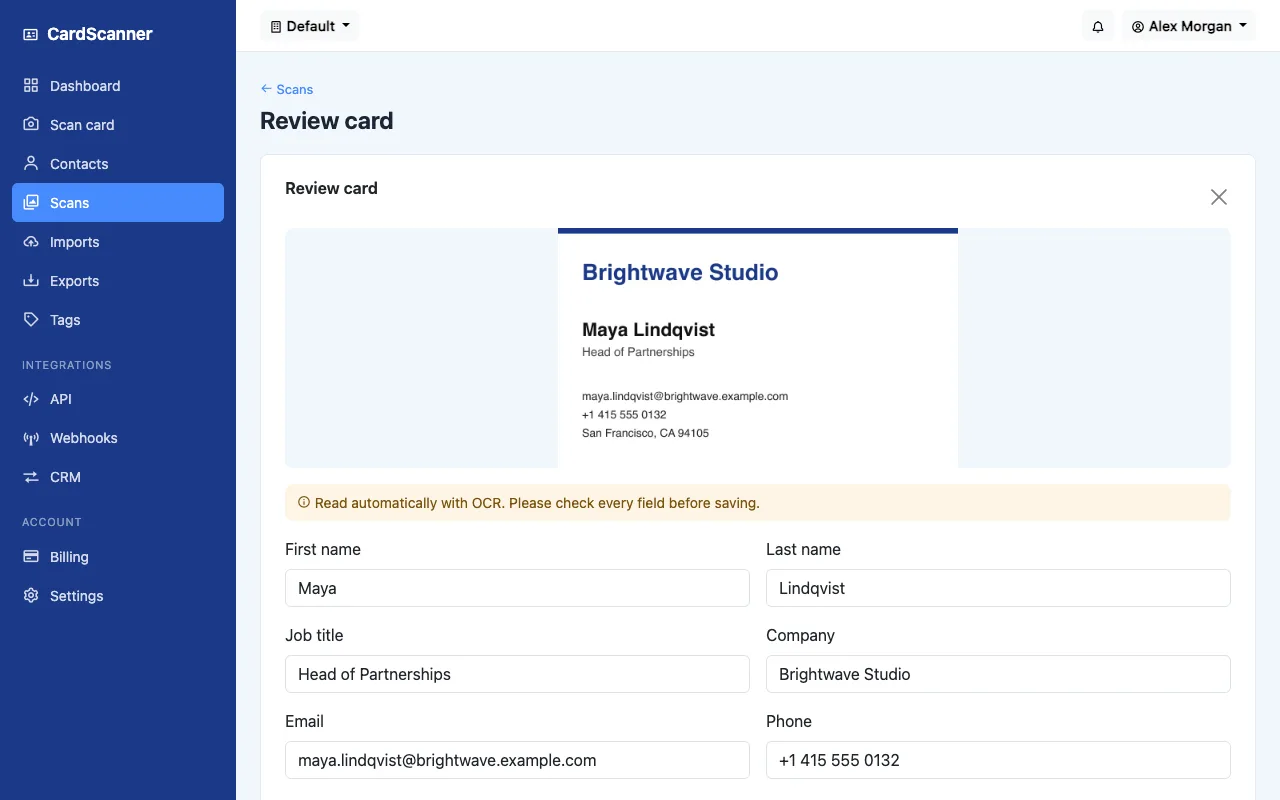
When several cards look right, select them and press Approve selected. You do not have to open each one for long.
Export the contacts to CSV
- Open Exports.
- Choose Generic CSV as the format.
- Pick a date range if you only want recent contacts.
- Press Export and download the file when it is complete.
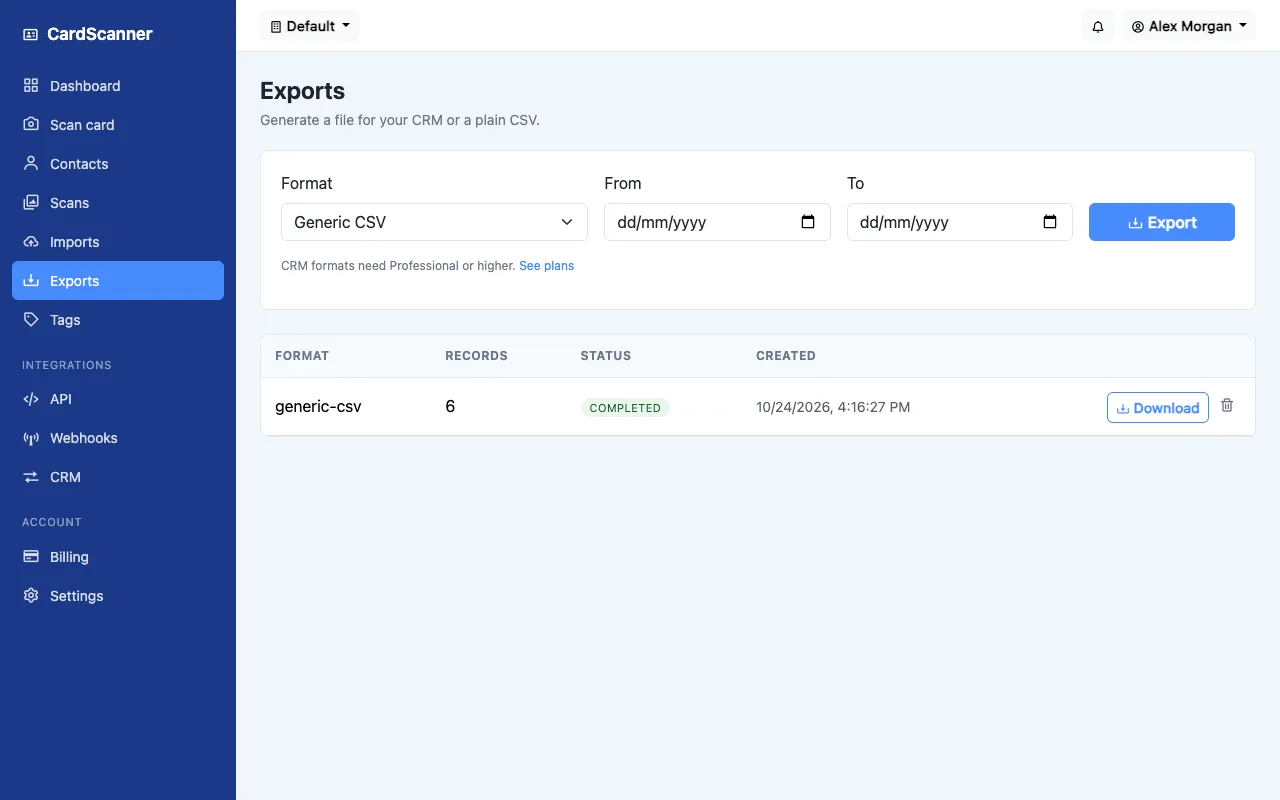
Here is an illustrative example of what a few rows can look like.
| Name | Company | |
|---|---|---|
| Maya Lindqvist | Brightwave Studio | maya.lindqvist@brightwave.example.com |
| Daniel Osei | Harbor Logistics | daniel.osei@harborlogistics.example.com |
| Priya Raman | Lumen Analytics | priya@lumenanalytics.example.com |
Open the CSV file in Excel
Double click the file, or open Excel and choose File, then Open. If the columns look squashed, use the Data tab and choose From Text or CSV. CardScanner exports CSV files, which Excel opens. It does not create .xlsx files. The business card to CSV page has more detail.
Common problems and how to fix them
- A name is wrong. Edit it on the review screen before saving.
- A card was read badly. Take a sharper photo in better light and upload it again.
- A field is empty. The card may not show it. Add it by hand if you know it.
- The columns look odd in Excel. Use Data and From Text or CSV to choose the right separator.
Keep your contacts organized and avoid duplicates
CardScanner checks new cards against the contacts you already have. If someone looks familiar, you can use the existing contact, create a new one or merge the details. Add a tag such as Conference so you can find the group later. Tags and notes are included in the CSV.
A checklist for a batch of cards
- Sort the cards and remove any you do not need.
- Photograph each card in good light.
- Upload the photos, up to 100 at a time.
- Open each card marked review and check the email first.
- Fix mistakes and save.
- Approve the rest together.
- Check for duplicates.
- Add a tag and any notes.
- Export to CSV and open it in a spreadsheet.
Try it with your own cards
Pick a handful of cards and see how it feels. You can start on the Free plan, which includes 100 scans each month.
Try CardScanner for free
Scan your first card and see the details appear. No credit card needed to start.
Start Scanning for Free