 CardScanner
How to Turn Business Card Photos Into Digital Contacts
A business card is a small piece of paper that is easy to lose. A digital contact is easy to search, sort and use. Moving from one to the other is the job this guide covers.
The key idea is simple. Take a good photo, let the text be read, and check the result. The business card OCR page explains how the reading works.
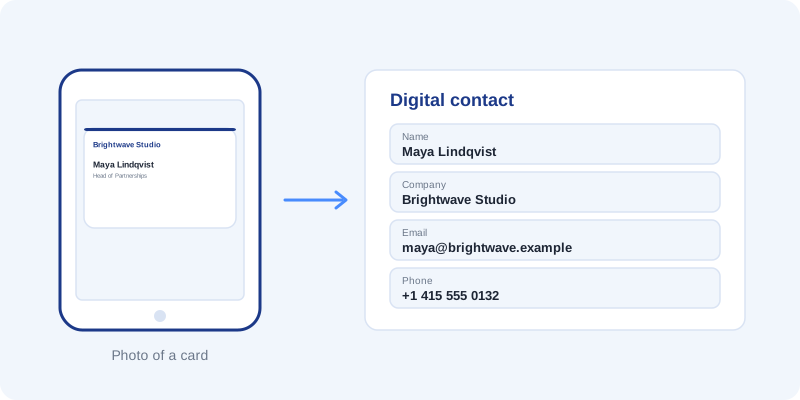
Start with a good photo
Everything depends on the photo. If the text is hard for you to read, it is hard for software too.
- Use daylight or a bright room.
- Place the card flat on a plain background.
- Keep the whole card in the frame, with the edges visible.
- Hold the phone parallel to the card so the text is not stretched.
- Tap the screen to focus before you shoot.
Common mistakes to avoid
- Glare. A shiny card under a lamp can hide whole lines of text.
- Shadows. Your hand or phone can cast a shadow across the card.
- Several cards in one photo. Take one card per photo.
- A tilted angle. It makes letters harder to read.
- Tiny photos. Very small images lose detail. Use your normal camera setting.
Add the photo to CardScanner
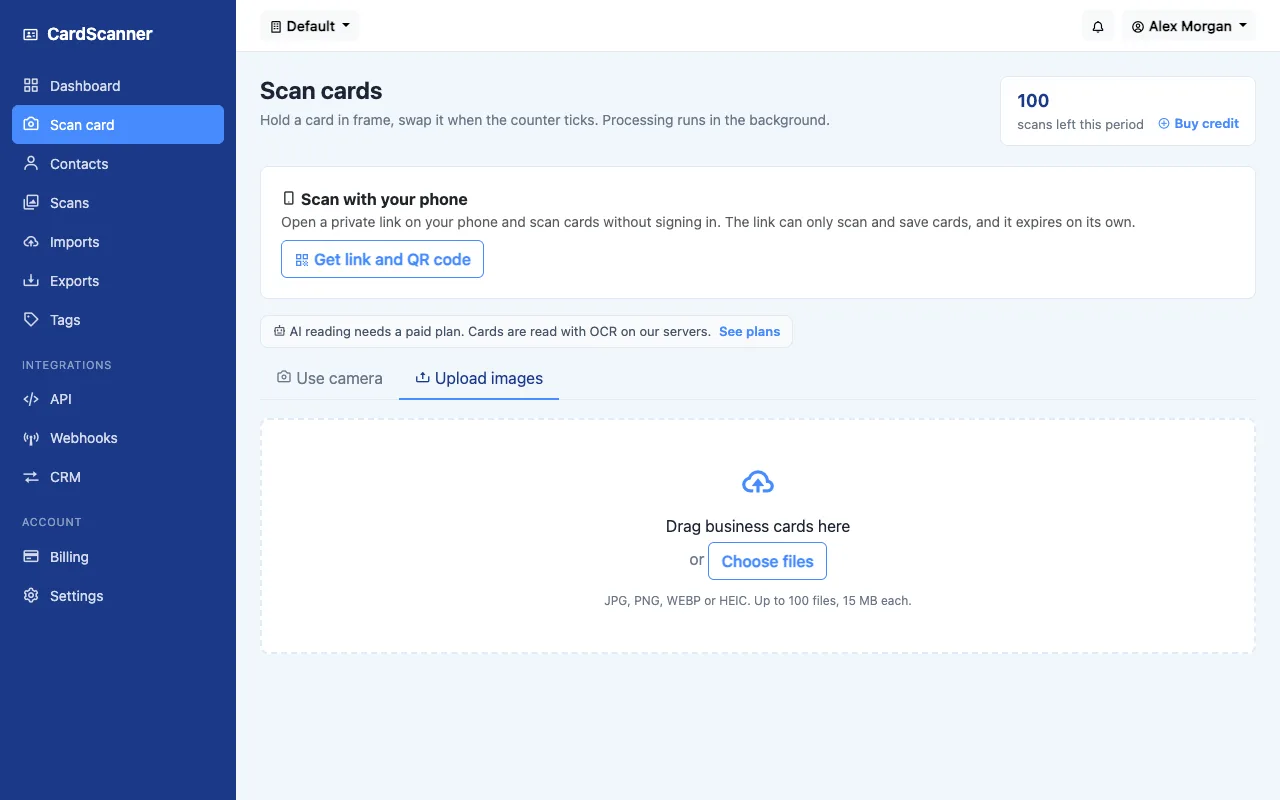
You can upload photos from your phone or computer, use the camera on the scan page, or scan with your phone using a private scan link made from a QR code. CardScanner accepts JPG, PNG, WEBP and HEIC files, up to 15 MB each.
What happens next
The text on the card is read, then sorted into fields such as name, job title, company, email and phone. Emails and phone numbers are easy to spot because of their shape. Names, titles and companies are sorted by where they sit on the card.
The card then waits in your Scans list with the status review. Nothing is saved as a contact yet.
Review the extracted details
Open the card. The photo is shown above the fields. Start with the email address, then check the name and the phone number. Fields the reader was less sure about are marked, so look at those too.
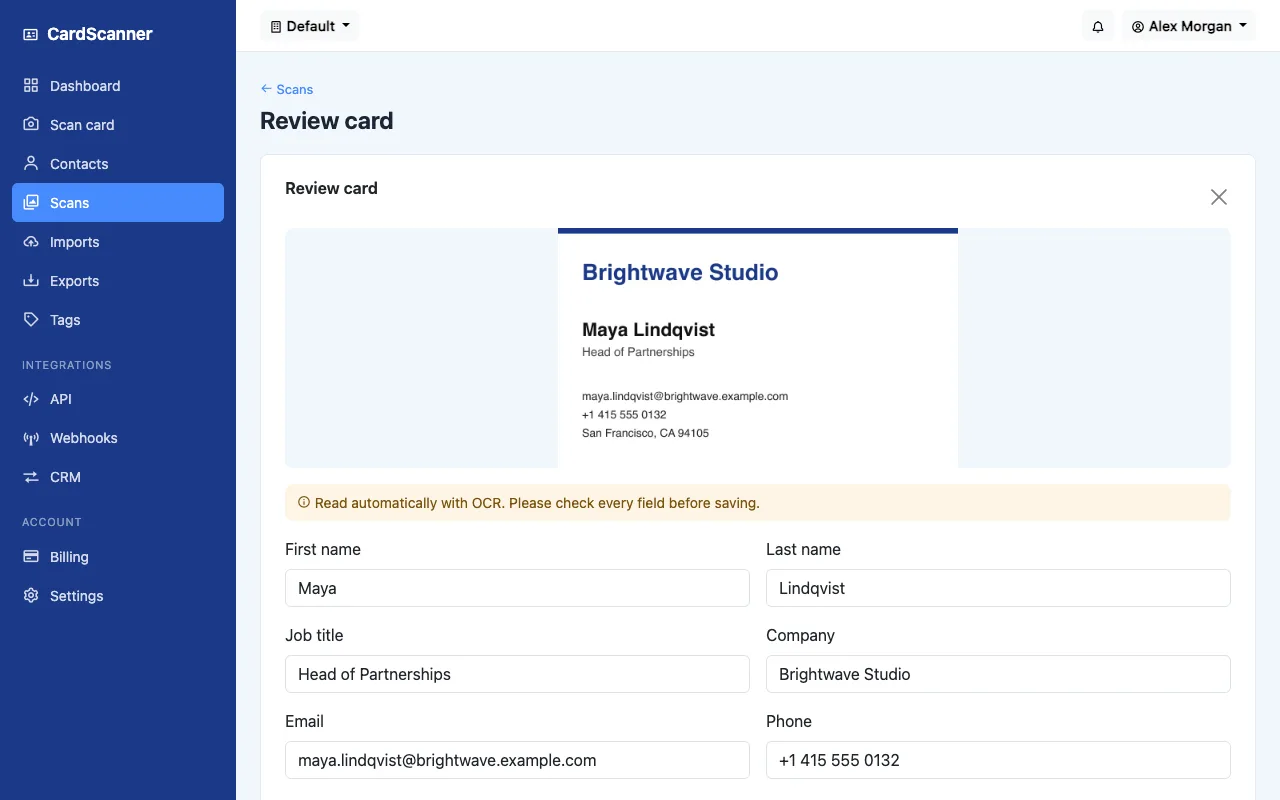
If you see something wrong, click the field and fix it. If the card shows a detail that was not placed in a field, look in the notes. When everything looks right, press Save contact.
What if the result is poor
Sometimes a photo is simply not good enough. Do not spend a long time fixing every field. Take a new photo in better light and upload it again. It is often faster.
Cards in English work best. Cards in other languages may need more corrections.
Keep the contact useful
Add a tag, such as the name of the event, and a note about the conversation. These small details help you remember who the person is. When you want the list elsewhere, you can export it as a CSV file. See business card to CSV for how that works.
A short checklist
- Take a sharp photo in good light.
- Upload it.
- Open the card marked review.
- Check the email, the name and the phone number.
- Fix mistakes and save.
- Add a tag and a note.
Try it with a few cards and see how much typing you can skip.
Try CardScanner for free
Scan your first card and see the details appear. No credit card needed to start.
Start Scanning for Free